

Which calendars can I connect?
You can connect Microsoft Calendar and Google Calendar, from Account Settings › Integrations. Relate uses read-only access to display your events so you can choose which meetings to analyze — it never creates, edits or deletes calendar entries. You can connect more than one calendar, re-sync a connection, or disconnect it at any time. Multiple calendar sync is available on the Catalyst plan and above.
Connecting a Microsoft calendar may require your organization's Microsoft admin to grant permission first. If the connection fails, that is the usual cause — ask your IT team to approve Relate's calendar access.
How to connect or re-sync your calendar
Go to Account Settings › Integrations.
Choose Microsoft Calendar or Google Calendar and click Connect.
Approve the read-only permission request from Microsoft or Google.
To add a second calendar, use "Connect another calendar". To refresh a connection that looks out of date, click Re-sync. To remove it, click Disconnect.
Connected calendars appear on the Meetings page in the Calendar panel, with a green dot next to the connected account.
▶ Step-by-step walkthrough: Connect Your Calendar to Relate
▶ Step-by-step walkthrough: How To Reconnect Your Calendar In Relate — 7 steps: disconnect and reconnect to fix a stale sync
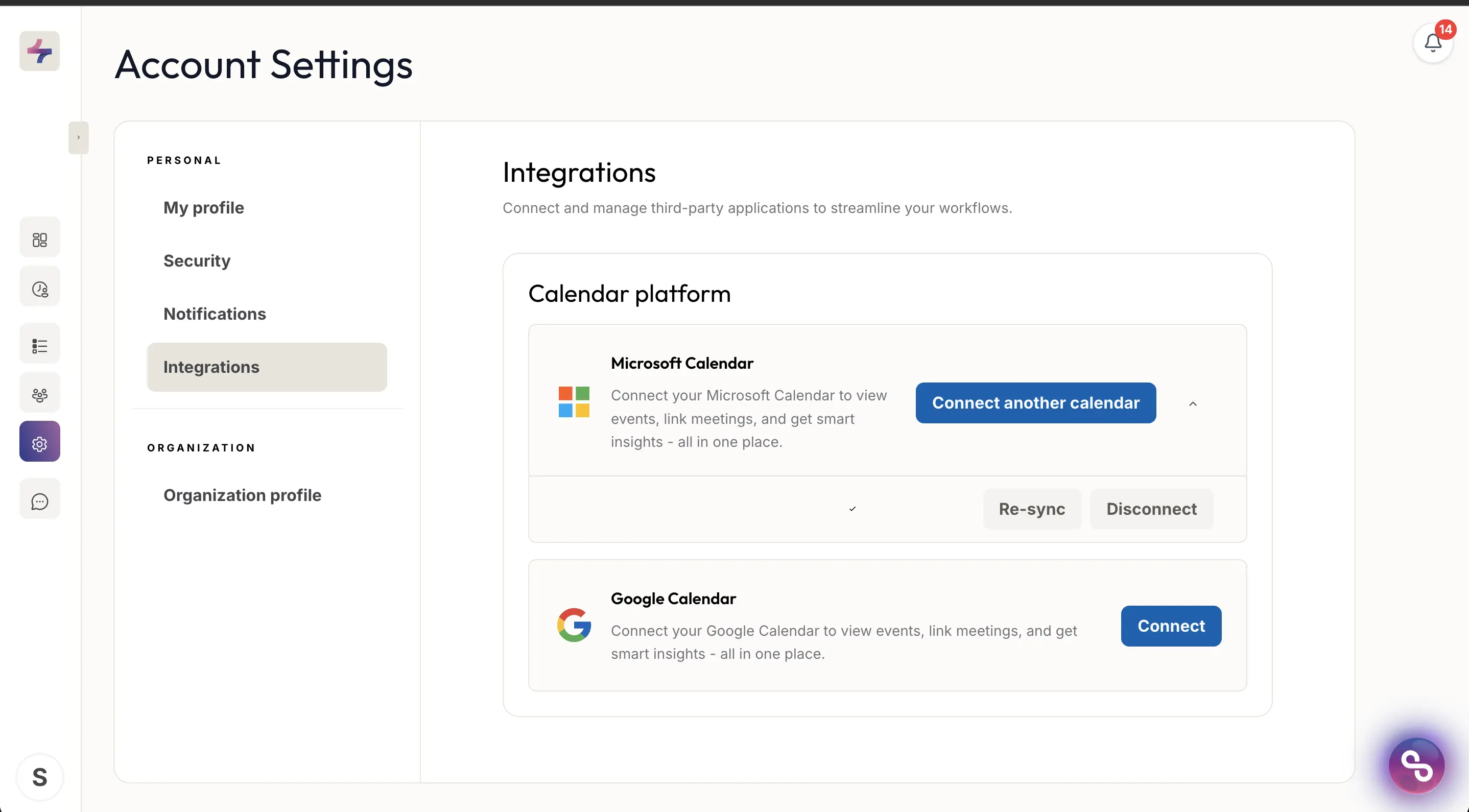
Account Settings then Integrations, with a Microsoft calendar already connected.