

How do I add someone to Relate?
An Admin or Super Admin invites them from the Users page. New users appear with a status of Active once they have joined. Expand any user row to see their email, location, time zone, phone number and the date they joined.
How to add a user and set up a team
Go to Users. The People tab lists everyone with their status, role and teams.
Invite the new person, then set their role — Member, Admin or Super Admin.
Switch to the Teams tab to create a team and use "Select team manager" to assign its manager.
Add the person to one or more teams.
When inviting, you can add several people in one go with "Add another", or use "Generate link" to send a single join link to a group. Invited users must accept before they appear as Active.
Use the search box, "Select teams" and "Filters" on the People tab to find users quickly once your organization grows.
▶ Step-by-step walkthrough: How to Sign-up to Relate with your Microsoft Account and add team members — steps 20-27 cover inviting users, assigning roles and teams
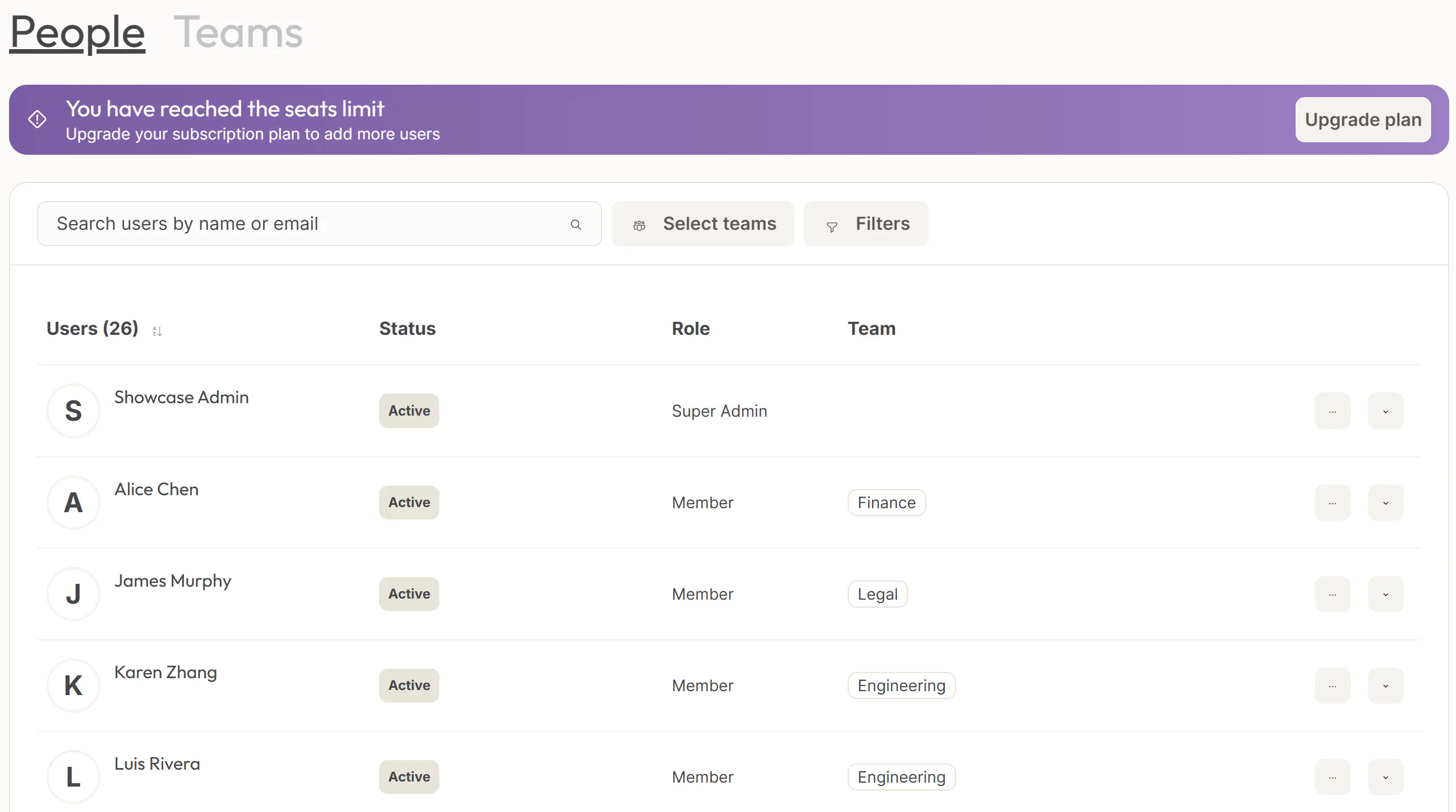
The People tab on the Users page, showing each person's status, role and team.
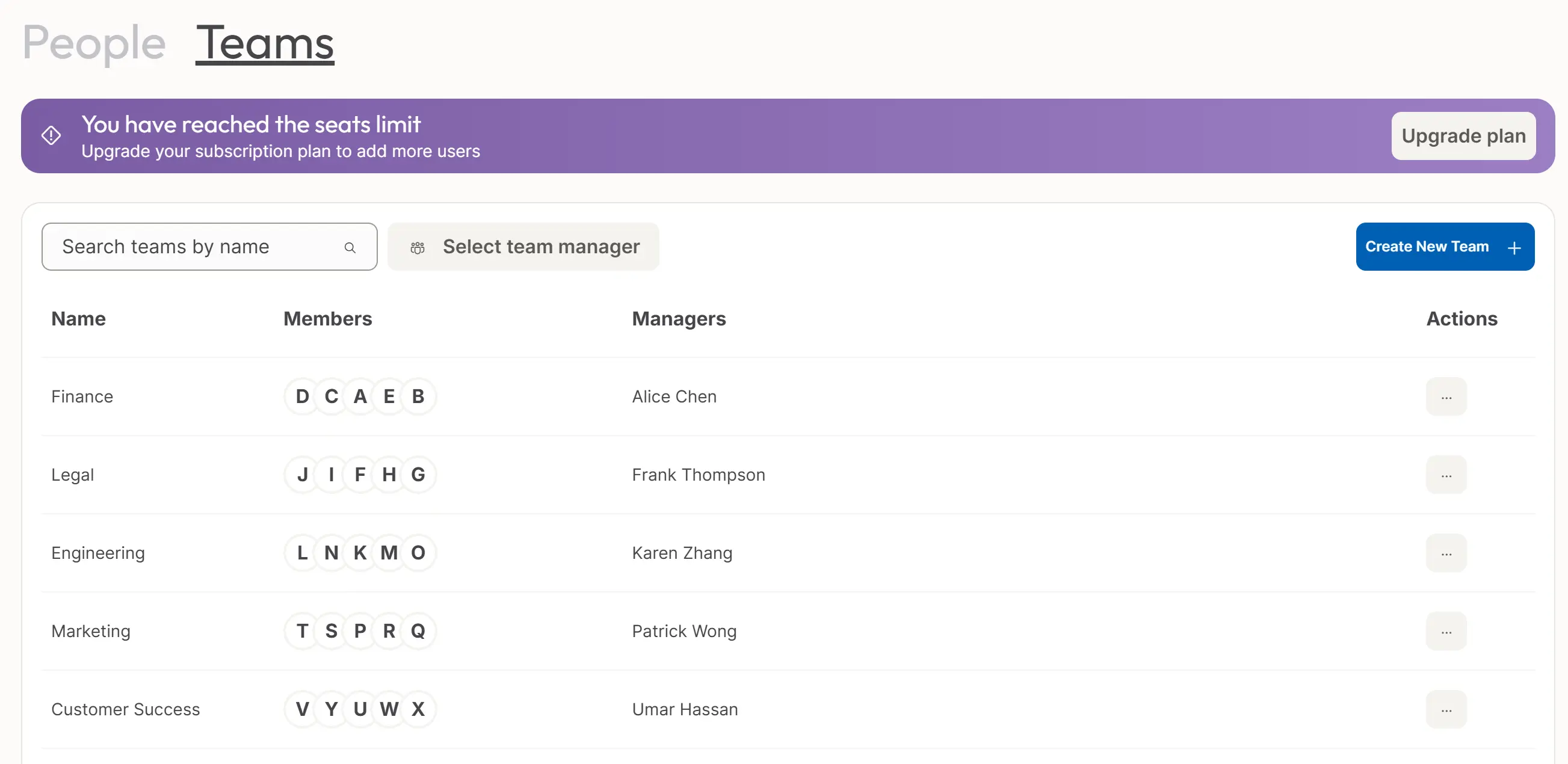
The Teams tab, where you create teams and assign their managers.